Working with settings tables
All calculation settings of a hub live on the Settings tab of the Hub Manager. Open it with Hubs, Templates or Configurations on the ElectricalPack tab.
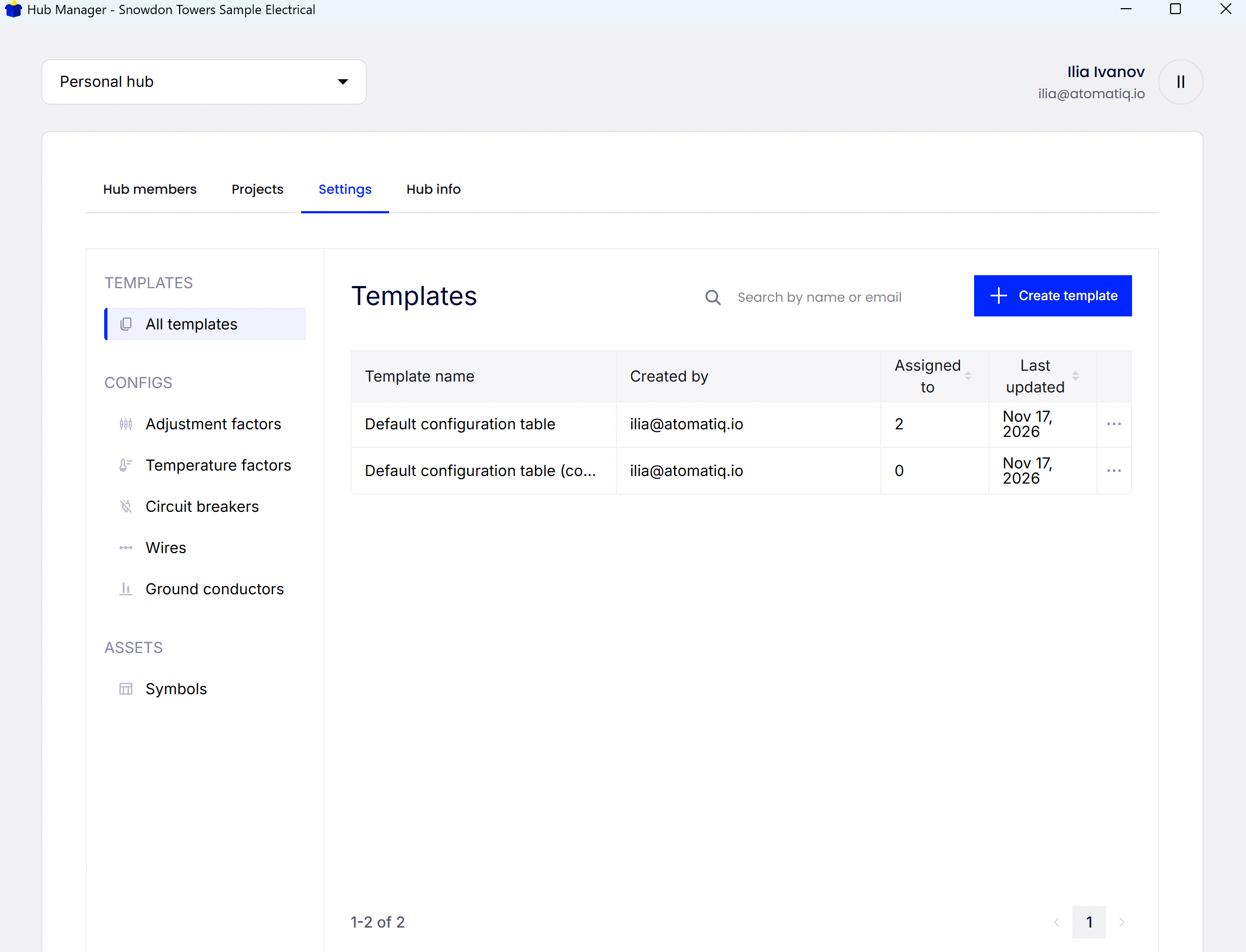
Where everything is
| Sidebar group | Section | What it holds |
|---|---|---|
| Templates | All templates | The templates your projects calculate with |
| Configs | Adjustment factors | Derating by the number of conductors in a circuit |
| Configs | Temperature factors | Derating by ambient temperature and wire temperature rating |
| Configs | Circuit breakers | Breaker ratings and their interrupting capacity |
| Configs | Wires | Wire families and their wire types |
| Configs | Ground conductors | Ground conductor size per breaker rating |
| Assets | Symbols | Custom symbols of the diagram editor |
The units of every table follow the measurement system of the hub. Change it, and the Transformer Z1 Unit (% or p.u.), on the Hub info tab; both apply to every template and project of the hub.
Choose, create and manage tables
Each Configs section can hold several tables, for example one breaker table per manufacturer. The exception is Ground conductors: its table is built in and read-only, so you can view it but not create, edit, rename or delete a table there.
- Pick the table to show in the list at the top of the section.
- Create table: enter a Table name and click Create. Names must be unique in the section.
- Open the menu of the table to Rename, Duplicate (the copy is named … (copy)) or Delete it.
Edit rows
- Click a cell and type the value. Each column shows an example, for example e.g. 70.00.
- Open the menu of a row to Duplicate it, Insert row above, Insert row below, or Delete it.
- Click Save when you're done.
A cell with a wrong value is marked and explains what's wrong, for example This field cannot be empty, Enter a valid number or Range overlaps with another row. Fix it before you save.
Unsaved changes
If you switch to another table or section with unsaved edits, the Hub Manager asks what to do: Save & switch, Discard changes, or Keep editing.
Note: Saved changes reach every model of the hub: open models recalculate with the new values. Only the hub owner and admins can change settings; for other members the tables are read-only (shown with a lock).
Tip: Before changing a table that projects already use, duplicate it and try the change on the copy in a test template