Editing templates
A template collects the rules a project calculates by. Open Settings > All templates to see every template of the hub with Template name, Created by, Assigned to (the number of projects) and Last updated.
Create a template
- Click Create template.
- Enter the Template name and click Create.
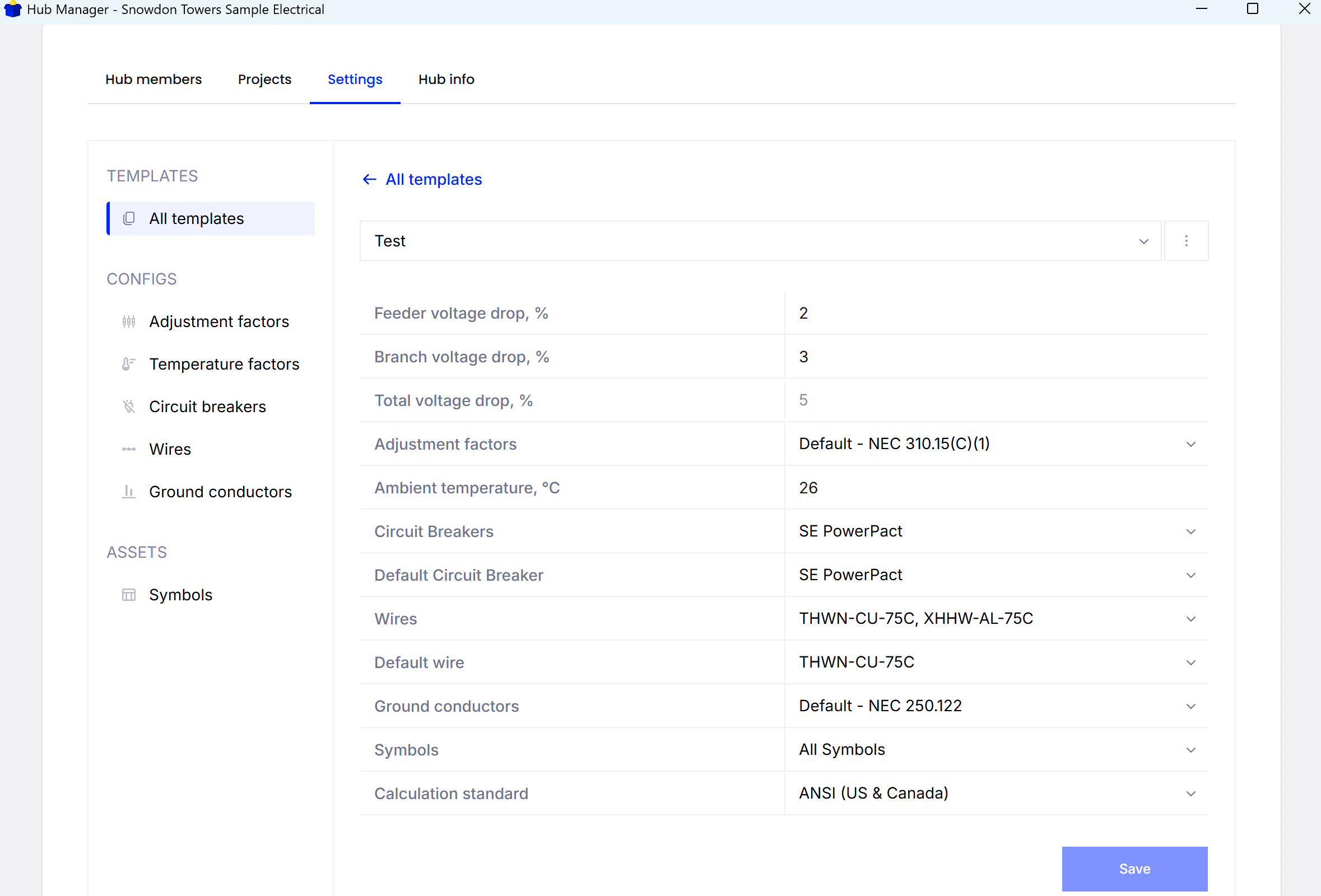
- Open the template and click Edit.
Template fields
| Field | What it sets |
|---|---|
| Feeder voltage drop, % | Voltage drop limit of feeders (default 2 %) |
| Branch voltage drop, % | Voltage drop limit of branch circuits (default 3 %) |
| Total voltage drop, % | Limit from the source to the end of a branch circuit (default 5 %) |
| Adjustment factors | The adjustment factor table used for derating |
| Ambient temperature | The temperature every circuit starts from, in °C or °F by hub units |
| Circuit Breakers | The breaker tables users can choose for a circuit |
| Default Circuit Breaker | The breaker table circuits use until a user picks another |
| Wires | The wire types users can choose |
| Default wire | The wire type circuits use until a user picks another |
| Ground conductors | The ground conductor calculation logic |
| Symbols | The symbol table of the diagram editor (Manage symbols) |
| Calculation standard | ANSI (US & Canada) or IEC (European), used for fault currents |
Click Save. The Hub Manager asks to confirm: changes are saved to the template and applied across all linked projects.
Assign a template to a project
- Open the Projects tab.
- In the Template column of the project, select another template.
The Hub Manager confirms Template for “Project” changed to “Template”, and the models of the project recalculate. Use the viewer button next to the template to see its values, and Edit template to change it.
Note: Deleting a template removes it from all linked projects. A circuit uses the template defaults until a user chooses another table for it in Properties or Schedules.