Generating diagrams
The diagram editor draws the distribution of your model as single-line diagrams, one diagram per panel. It reads the panels, circuits, loads and the last calculated conductors of the model; generating a diagram changes nothing in the model.
Before you start
- The model is connected to a hub project.
- The model has panels with branch circuits, and Electric Pack has calculated them.
Open the editor
- On the ElectricalPack tab, click SLD.
- The editor opens in its own window. Revit stays usable while it is open; click SLD again to bring the window to the front.
Generate diagrams
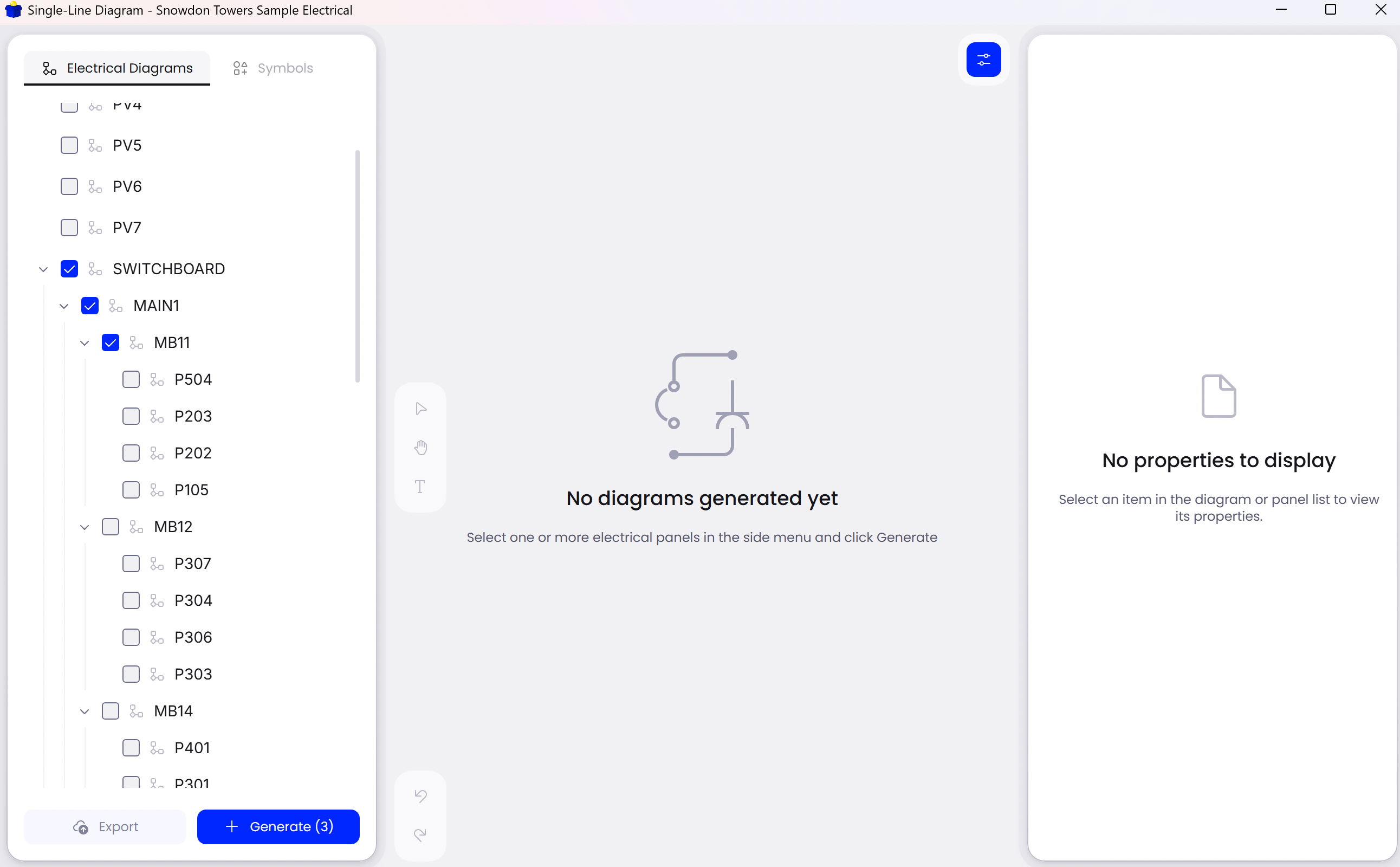
- On the left, open the Electrical Diagrams tab. It lists the panels of the model.
- Select the check boxes of the panels you want diagrams for.
- Click Generate. The button shows how many panels are selected, for example Generate (3).
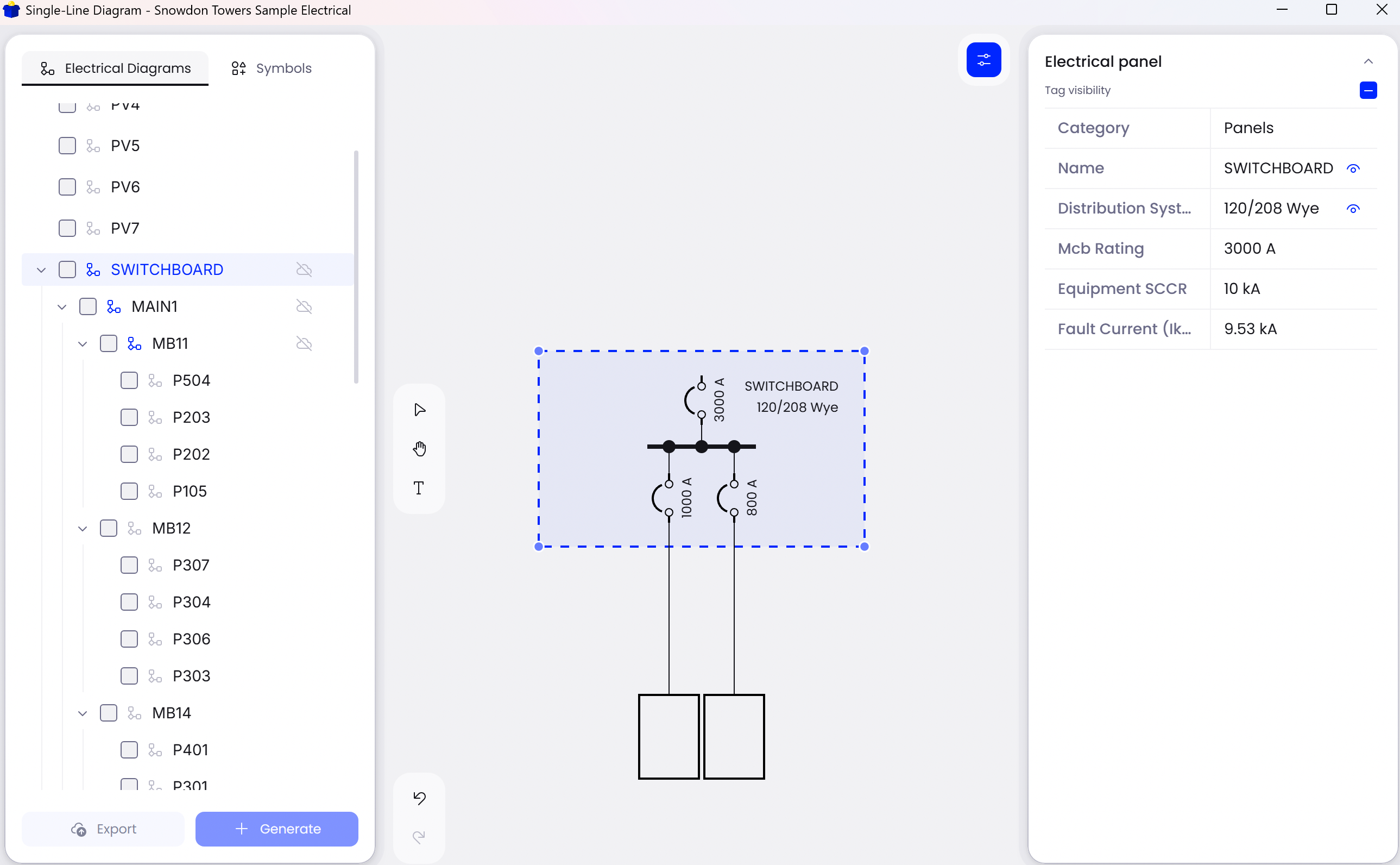
Each panel gets its own diagram with its breakers, conductors and loads. The parameter tags of a new diagram start hidden; show the ones you need from the properties on the right (see Editing elements and tags).
Work on the canvas
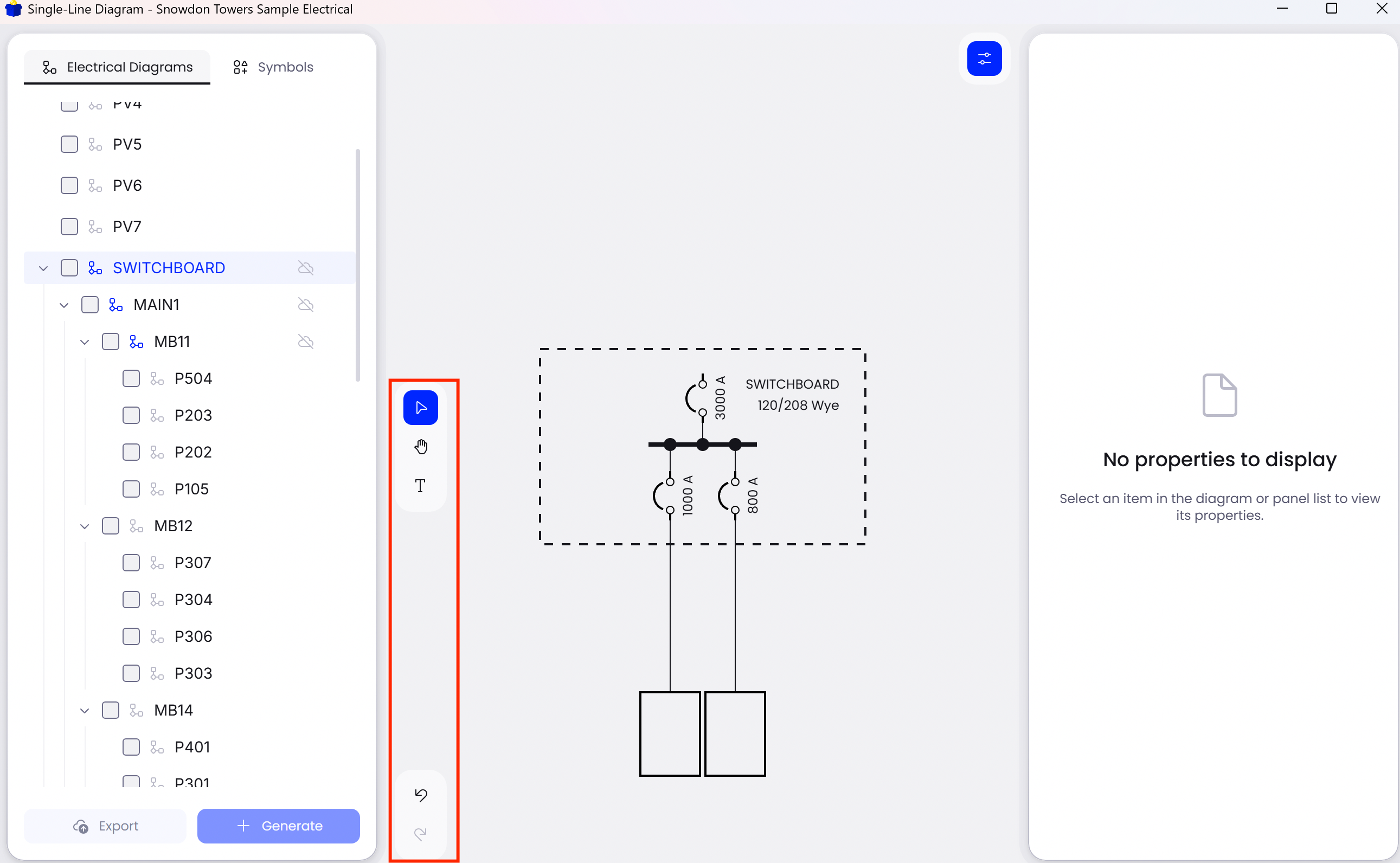
- Hand tool — pan the diagram.
- Move — select and move symbols.
- Text — add a text note.
- Use undo and redo in the toolbar to step through your edits.
- Select an element on the canvas or in the panel list to see its properties. With nothing selected, the right side shows No properties to display.
- Select a symbol to delete, rotate or replace it with another symbol.
Keep diagrams up to date
The editor reads the model again after every change, undo, redo and recalculation. The values of existing tags follow the model, but a saved diagram doesn't get new tags by itself. To add the tags of a new Electric Pack version, generate the diagram again.
Save and export
The diagrams are saved into the model when the editor closes and when you save the model in Revit. To put them on sheets, export them as Revit drafting views (see Exporting diagrams to Revit).
Troubleshooting
The editor shows No electrical panels found Make sure branch circuits are created in your project file and connected to panels.
Generate is greyed out Select at least one panel in the Electrical Diagrams list.
The editor window doesn't open If Revit shows ElectricalPack Connect did not respond, try again after a few seconds and restart Revit if it repeats. A blank window means the Microsoft Edge WebView2 Runtime is missing: install it and open the editor again.