Connecting your AI assistant
Important: While the server runs, every agent on this computer that connects to it can work with every model open in Revit, including changing it. Turn the server off when you don't need it.
- Open a project in Revit.
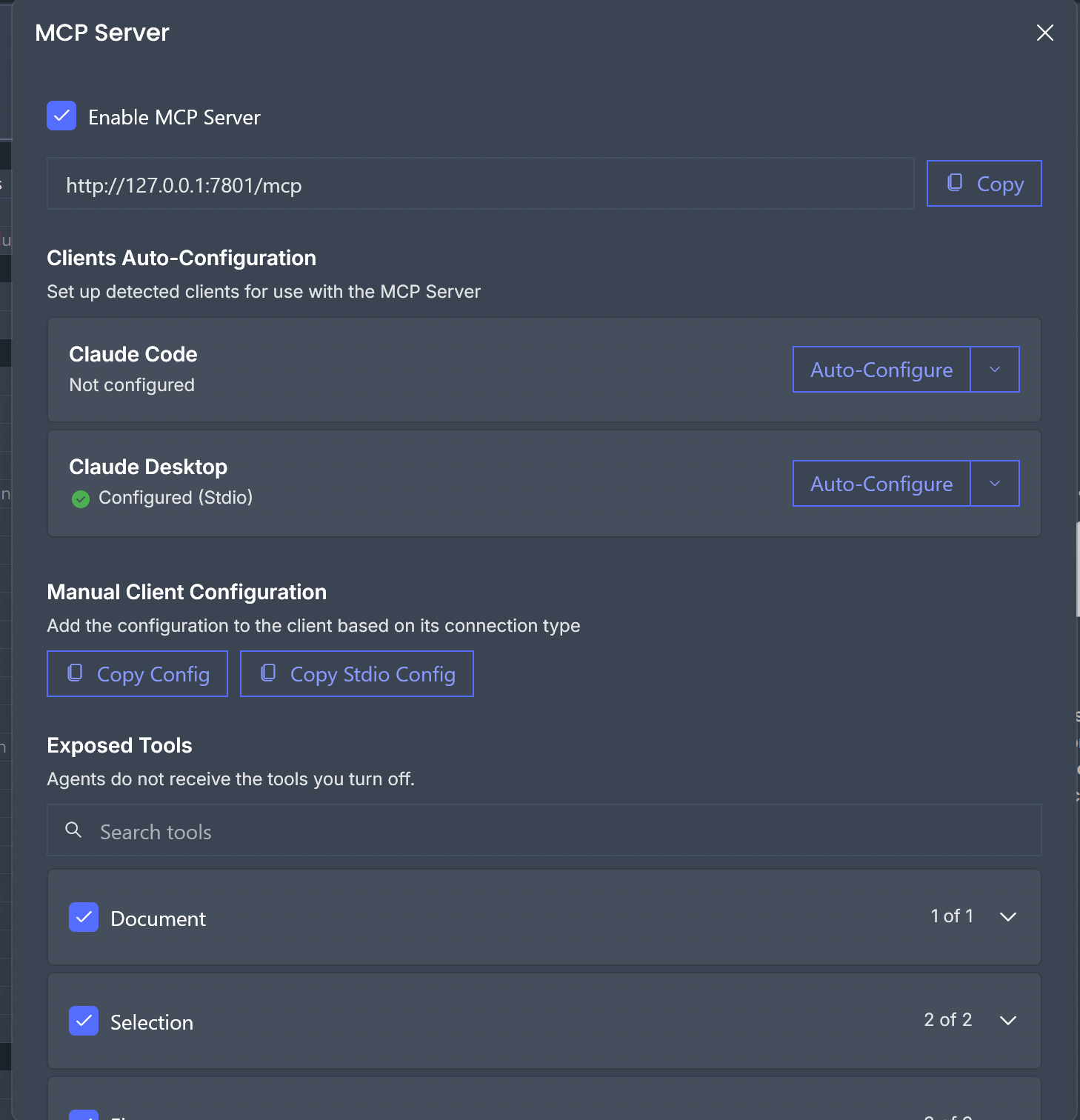
- On the ElectricalPack tab, click MCP Server.
- Select Enable MCP Server and confirm with Enable. The window shows the server address, for example http://127.0.0.1:7801/mcp.
- Under Clients Auto-Configuration, click Auto-Configure on the row of your client (Claude Code, Claude Desktop or Codex).
- Fully quit the client and start it again — for Claude Desktop, also quit it from the system tray. A running client reads its configuration only at start, so it won't show Electric Pack until it restarts.
Tip: You can also close the client before you click Auto-Configure and start it afterwards.
For another client, use Manual Client Configuration: Copy Config for clients that connect over HTTP, Copy Stdio Config for clients that start a process of their own, and paste it into the client settings. Clear Enable MCP Server to stop the server.